
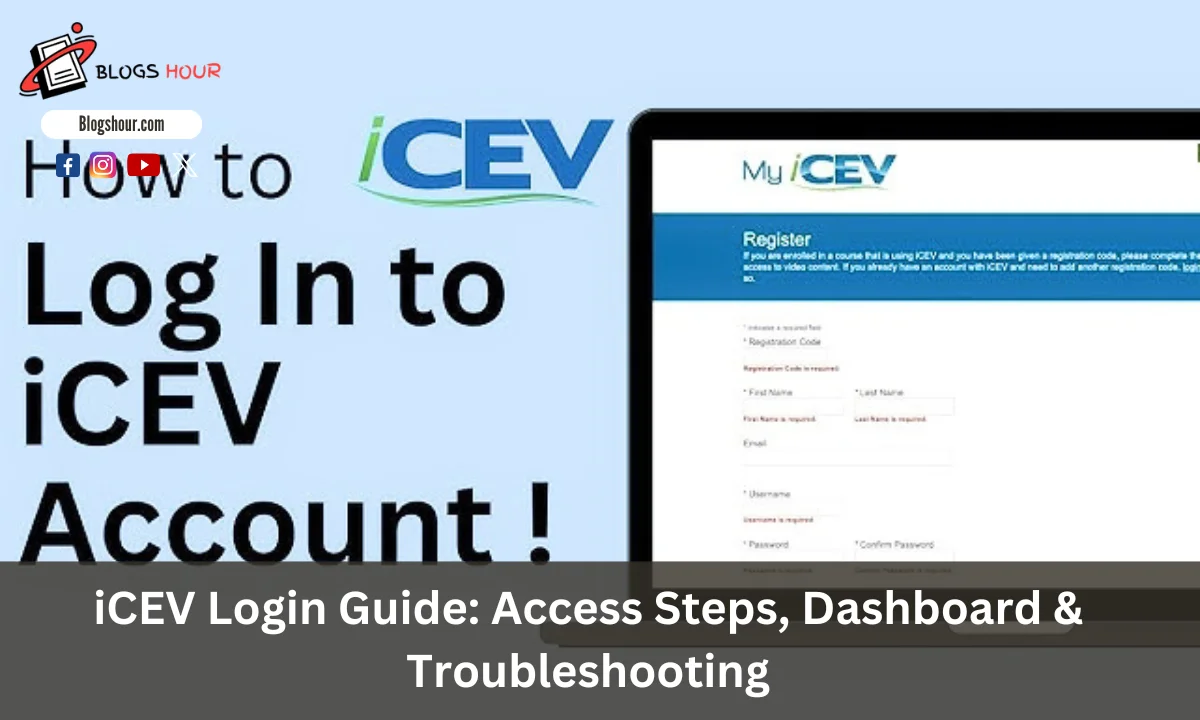
For students and teachers using iCEV, logging in is the first step before beginning any lesson. However, the login process can sometimes be confusing. Many users struggle to remember where to go, what to enter, or how to fix login issues.
iCEV is an online platform designed for schools. It helps students learn job-ready skills and assists teachers in managing classes, tracking progress, and sharing lessons. The platform works on both computers and mobile devices.
This guide will walk you through the login process, and provide solutions if you face any login issues. Whether you’re a student, teacher, or administrator, this blog will help you navigate iCEV certifications in 2026.
Who Can Use iCEV?
iCEV digital is primarily used by schools and training centers. If you’re part of a class that teaches job skills, there’s a good chance your school uses it.
Here’s who can log in to iCEV:
1. Students
Students can access video lessons, tests, and assignments. Teachers provide a class code to help you join and start learning.
2. Teachers
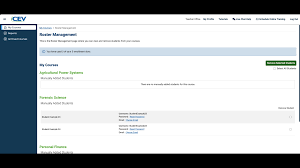
Teachers can create classes, assign tasks, and monitor student progress. Additionally, teachers can download reports and assign grades directly on the platform.
3. School Administrators
School admins are responsible for setting up teacher accounts, reviewing reports, and managing student data.
4. Homeschool Groups and Career Centers
iCEV is also used by homeschool groups and specialized training centers. If you’re part of one, your login process may differ slightly.
You don’t need advanced technical skills to use iCEV. You simply need your login details and a reliable internet connection.
Where to Find the iCEV Login Page
To access your iCEV account, visit the official login page:
This is the secure site for students, teachers, and administrators.
If your school uses a Single Sign-On (SSO) system like Clever, ClassLink, or Google, you can log in through your school’s portal. Simply find the iCEV app there.
Always make sure you’re on the official website to protect your personal information.
Step-by-Step Guide: How to Log In to iCEV
For Students
Option 1: Standard Login
- Visit https://login.icevonline.com/login
- Enter your username and password.
- Your username is typically provided by your teacher. If you don’t have it, ask your teacher or the school IT department.
- Click the “Login” button.
Option 2: Single Sign-On (SSO)
If your school uses SSO:
- On the login page, click the appropriate SSO option (e.g., “Sign in with Google,” “Clever Login,” or “ClassLink Login”).
- Enter your school email and password.
- Follow any additional prompts to complete the login.
Note: To use Google SSO, your iCEV account must be linked to your school Google account.
For Teachers
Option 1: Standard Login
- Go to https://login.icevonline.com/login
- Enter your username and password.
- Click the “Login” button.
Option 2: Single Sign-On (SSO)
If your school uses SSO:
- Select the appropriate SSO option on the login page.
- Enter your school credentials.
- Complete any additional steps as prompted.
Tips:
- If you forget your password, click the “Forgot Password” link and follow the instructions to reset it.
- Ensure your browser is up-to-date for the best experience.
- If you’re facing issues, reach out to your teacher or school IT support for assistance.
First-Time Users: How to Set Up Your iCEV Account
If you’re using iCEV for the first time, setting up your account is quick and easy. Your teacher or school will provide the necessary information to get started.
For Students:
You’ll need:
- A student login code (provided by your teacher)
- Access to the iCEV login page
Here’s how to set it up:
- Visit the login page.
- Click on “Create New Account” or use the class code field.
- Enter the student code given by your teacher.
- Fill in your name and email (if necessary).
- Choose a username and password.
- Save your login information in a secure location.
Once your account is set up, you’ll be able to access your class dashboard, videos, and assignments.
For Teachers:
If you’re a new teacher, your school should send you a teacher activation link.
Follow these steps:
- Open the email from iCEV or your school.
- Click the activation link.
- Complete the form with your name, email, and school details.
- Create a password.
- Log in and check your dashboard.
If you don’t receive an activation email, contact iCEV support or your school admin for assistance.
Helpful Setup Tips:
- Choose a strong but memorable password.
- Bookmark the login page for quick access.
- Ask your teacher for your student code if you don’t know it.
How to Reset a Forgotten Password
If you forget your iCEV password, you can reset it in a few simple steps:
- Go to the iCEV login page.
- Click on the “Forgot Password?” link.
- Enter the email address linked to your account.
- Check your email inbox for a message from iCEV and click the reset link.
- Set a new password.
Make sure your new password is easy to remember but hard for others to guess. If you don’t receive the email, check your spam folder. Still nothing? Contact iCEV support.
iCEV Login Not Working? Quick Fixes
If you encounter issues logging in, here are some steps to resolve them:
- Check your internet connection: Ensure you’re connected to the internet.
- Try a different browser: Use Chrome or Firefox for the best experience.
- Clear your cache: Old files might block the login process.
- Double-check your login details: Ensure your username and password are entered correctly.
- Wait a few minutes: The site may be down for maintenance or updates.
If none of these solutions work, visit the iCEV help page or email their support team. They respond quickly and can resolve most issues.
Using iCEV on Mobile Devices
You can access iCEV on both Android and iOS devices. Here’s how:
- Open your mobile browser (Chrome, Safari, etc.).
- Visit www.icevonline.com/login.
- Enter your username and password.
- Tap “Login.”
Your dashboard will appear, just like on a computer. You can watch videos, take quizzes, and review lessons. For a better experience, rotate your phone to landscape mode.
Tips:
- Keep your browser updated for optimal performance.
- Use Wi-Fi for faster loading.
- Save your login details in the browser for quicker access.
There is no official iCEV mobile app, but the website works well on mobile devices.
iCEV Login for Teachers vs. Students
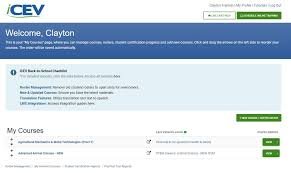
While the login page is the same for both teachers and students, the dashboard you see after logging in differs.
For Teachers:
- Course planning tools
- Grading features
- Lesson content
- Student tracking reports
Teachers can assign tasks, monitor student progress, and manage classes from the dashboard.
For Students:
- Assigned lessons
- Videos and readings
- Quizzes and tests
- Scores and feedback
Students only see the content assigned by their teacher. There are no editing options or class settings for students.
Data Safety and Login Security on iCEV
iCEV follows strong security measures to protect your data during login. Here’s how your login information stays safe:
- The platform uses HTTPS, ensuring your data is encrypted.
- Passwords are not stored in plain text.
- You can reset your password at any time.
- Teachers can view student activity, but not personal information.
To stay safe:
- Never share your password.
- Log out after using public devices.
- Change your password if you suspect someone else has it.
iCEV treats your login data with care, as it is designed specifically for educational environments.
Support and Help Desk for iCEV Login Issues
If you’re experiencing login issues, iCEV provides full support. Here’s how to get help:
- Visit the Support Center at support.icevonline.com.
- Use the search bar to find answers to common issues.
- Submit a support ticket for personalized assistance.
- Call or email the help team (contact details are available on the website).
iCEV support handles issues like:
- Login errors
- Forgotten passwords
- Account access issues
- Dashboard problems
Most issues are resolved within one business day.
Latest Updates to iCEV Login System in 2026
iCEV has made important updates to improve user experience in 2026. These changes focus on making login faster and more secure:
- Enhanced security: Multi-factor authentication (MFA) adds an extra layer of protection.
- Faster login: Optimized servers make logging in quicker than before.
- Better mobile experience: iCEV’s mobile login page is smoother and works across different devices.
Tips for Smooth iCEV Access All Year Round
To ensure seamless access to iCEV, here are some helpful tips:
- Update your password regularly: This improves security and prevents login issues.
- Clear your browser cache: This helps load the latest version of the login page.
- Use supported browsers: Stick with Chrome or Firefox for the best experience.
- Check your internet connection: A strong connection is crucial for fast access.
- Enable automatic updates: Make sure your device and browser are up-to-date.
Following these steps will help you avoid most access issues and ensure smooth use of iCEV.
FAQs on iCEV Login
What should I do if I forget my iCEV password?
Click the “Forgot Password” link and follow the instructions to reset it.
Can I use iCEV on mobile devices?
Yes, iCEV works on smartphones and tablets through a mobile browser.
How can I register for a course?
To register, you’ll need a course code from your instructor. Enter the code in the registration section on iCEV.
What if I have trouble logging in?
Check your internet connection and confirm your login details. If the issue persists, contact iCEV support.
Final Thoughts
Keeping your iCEV login secure and smooth is essential for both students and teachers. By staying informed about the latest updates and following a few best practices, you can ensure easy and uninterrupted access. Always remember to check for updates, clear your cache, and contact support if you encounter issues.