
If you’re having trouble logging into your Xello account, you’re not alone. Many users face login issues that can be frustrating and confusing. Whether you’ve forgotten your password or are encountering problems with the login page, these obstacles can prevent you from accessing the valuable tools you need for career planning, college exploration, and personal goal-setting.
In this guide, we’ll walk you through the steps to resolve your Xello login issues quickly and efficiently. We’ll also cover common troubleshooting tips to help you get back on track with minimal hassle.
Keep reading to learn how to access your Xello account easily and ensure a smooth, stress-free experience.
How to Log in to Xello: Step-by-Step Guide
If you’re using Xello for the first time or need help logging in, follow these simple steps. The process is quick and easy.
Step 1: Go to the Login Page
Open your preferred browser and visit this link:login.xello.world. This is the official login page for all Xello users.
Step 2: Enter Your School Credentials
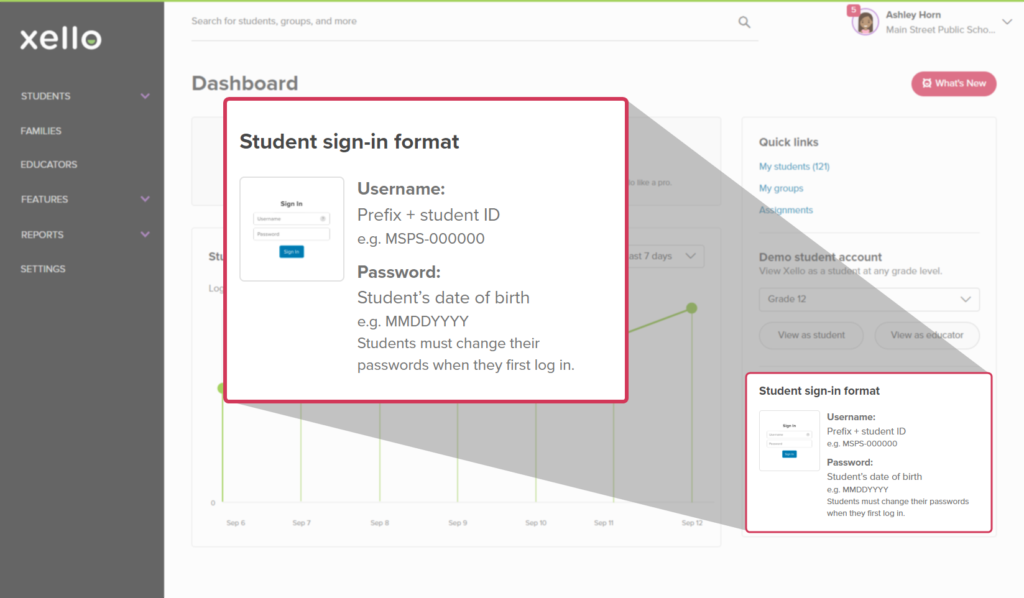
Use the login ID and password provided by your school. If your school supports Google or Microsoft login, you can select one of those options to sign in.
Step 3: First-Time Login Setup
If it’s your first time logging in, you may be asked to update your password or set up your account.
Step 4: Using SSO (Single Sign-On)
Some schools allow you to log in using Single Sign-On (SSO) through their learning platform or website. If this option is available, use it to skip typing in a password.
Step 5: Troubleshooting Help
If you’re unable to log in, click on the “Having trouble signing in?” link on the login page. You’ll be guided through resetting your password. If the issue persists, reach out to your school’s tech support team for assistance.
These steps should work for most users. Always double-check your login details. Also, make sure Caps Lock is off and try using a different browser if the page isn’t loading correctly.
Xello Login for Different Platforms
You can access Xello from any device that has an internet connection. Whether you’re using a school laptop, tablet, or your personal smartphone, the process remains the same. All you need is the correct link and your login credentials.
On Computers and Laptops
Open a web browser such as Chrome, Safari, or Edge. Navigate tologin.xello.world and enter your login information. For optimal performance, ensure your browser is up to date.
On Mobile Devices
You don’t need to download an app. Simply open the browser on your phone and enter the login page URL. The mobile version of Xello is designed to fit smaller screens, so it’s just as easy to use as the desktop version.
Through School Portals (SSO)
Many schools connect Xello course planner with their online portals. If your school offers this, you can log in directly through your school’s website or dashboard without having to enter a password each time.
Tips for a Smooth Login
- Use the device your school recommends for best results.
- Keep your browser updated to avoid login issues.
- Ensure you’re connected to a stable Wi-Fi network to prevent session timeouts.
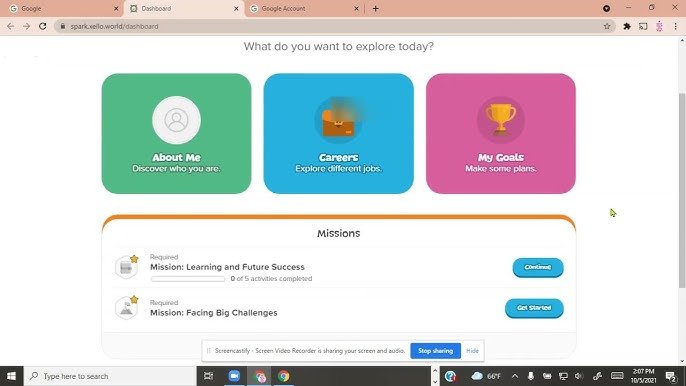
Once logged in, your Xello scholarships dashboard will show your progress, saved goals, and access to various career tools. You only need to log in once a day unless your session ends.
What to Do If You Forgot Your Xello Password
If you forget your password, don’t worry. Resetting it is simple.
Go to the login page atlogin.xello.world and click on the “Having trouble signing in?” link. Enter the email address you used when setting up your account and click “Send Email.”
Xello will send you a password reset link via email. Open the message, click the link, and create a new password. Make sure to choose a password you can easily remember.
The reset link expires after seven days, so be sure to act quickly. If the link expires, repeat the process to receive a new one.
If you are a student and don’t have an email linked to your account, your teacher can help you reset the password. Here’s how:
- Your teacher logs into their Xello educator account.
- They search for your name.
- They go to your profile and select “Create Temporary Password.”
- Use this temporary password to log in, and then change it to something you’ll remember.
Common Login Issues and How to Fix Them
If you’re having trouble logging into Xello, it’s usually due to a simple issue. Here are the most common problems and solutions:
Wrong Username or Password
Make sure your username and password are entered correctly. Double-check for any typing errors. Xello passwords are case-sensitive, so make sure Caps Lock isn’t on. If you forgot your password, follow the reset steps above.
Browser Problems
If the page isn’t loading correctly or acting strangely, try these solutions:
- Update your browser to the latest version (Chrome, Firefox, Safari, or Edge).
- Clear your browser’s cache and cookies.
- Try opening the site in an Incognito or private browsing window.
Single Sign-On (SSO) Doesn’t Work
If your school uses SSO and it’s not working, verify that you are on the correct school login page. If the issue persists, ask your school’s IT department for assistance.
Account Locked
After too many unsuccessful login attempts, your account may be temporarily locked. Wait a few minutes and try again. If it’s still not working, contact your school’s tech support.
Still Can’t Log In?
If you’re still unable to log in, contact your school’s IT team or visit Xello’s help page for further assistance.
How to Maintain Your Xello Account
Your Xello account holds valuable information for your school and career planning. To keep your account running smoothly, follow these maintenance tips.
Keep Your Information Updated
If you change your email or contact details, update them in your Xello account. This ensures you can recover your account easily if you forget your login details or get locked out.
Use a Strong Password
Pick a password that’s difficult for others to guess. Avoid using personal information, like your name or birthdate. It’s a good idea to mix numbers, letters, and special characters. If you suspect someone knows your password, change it immediately.
Check Your Account Regularly
Log in from time to time to make sure everything looks correct. If you notice anything unusual, report it to your school or Xello support.
Log Out After Use
If you’re using Xello on a shared or school computer, always log out when you’re finished. This helps protect your information from others.
Update Your Browser
Xello works best on the latest versions of browsers. If the pages aren’t loading properly, updating your browser can help fix the issue.
These simple habits will help you keep your account secure and easy to use.
Troubleshooting Xello Login on Different Devices
If you’re having trouble logging into Xello on different devices, follow these tips for quick fixes.
On a Computer
- Make sure you’re using an up-to-date browser like Chrome, Firefox, Safari, or Edge.
- Clear your browser’s cache and cookies.
- Disable browser extensions that might be interfering with the site.
On a Phone or Tablet
- Open Xello directly through your browser rather than using a shortcut.
- Ensure your device is up to date with the latest software.
- Check that your internet connection is strong and stable.
If Your School Uses Single Sign-On (SSO)
- Log in through your school’s portal rather than the main Xello login page.
- Double-check that your username and password are correct.
- If the issue persists, contact your school’s IT team for help.
Other Quick Fixes
- Restart your device to refresh the connection.
- Try logging in from a different device to see if the issue is device-specific.
- Wait a few minutes and try again; sometimes server issues are temporary.
Last Words
Xello is a powerful tool for planning your future. By keeping your account updated and following the login tips mentioned above, you can avoid common login problems and enjoy a seamless experience.
If you encounter any issues, Xello’s support team or your school’s IT department is always available to help. Staying on top of basic account maintenance and troubleshooting steps ensures that your Xello account remains secure and easy to access.